Resending a Survey from Propel Rx
This topic is intended for Independent pharmacies only and is not applicable to Rexall pharmacies.
Surveys sent from Propel Rx can be resent if the patient did not receive them or lost the email, message, or link. This is possible when the survey has not been answered yet (i.e., Status = To Be Answered). The survey can be sent using the original communication method or a different one. Patients will have 14 days (for consultations) or 30 days (for follow-ups) to complete the survey before it's cancelled automatically on the survey site.
There are two locations from which a survey can be resent. Select the dropdowns to learn more.
 From the Surveys Tile
-
Navigate to the Surveys tile on the Workbench.
-
Select the Consultations or Follow Ups tab to locate the survey.
-
Select the survey link to open it in a separate window.
-
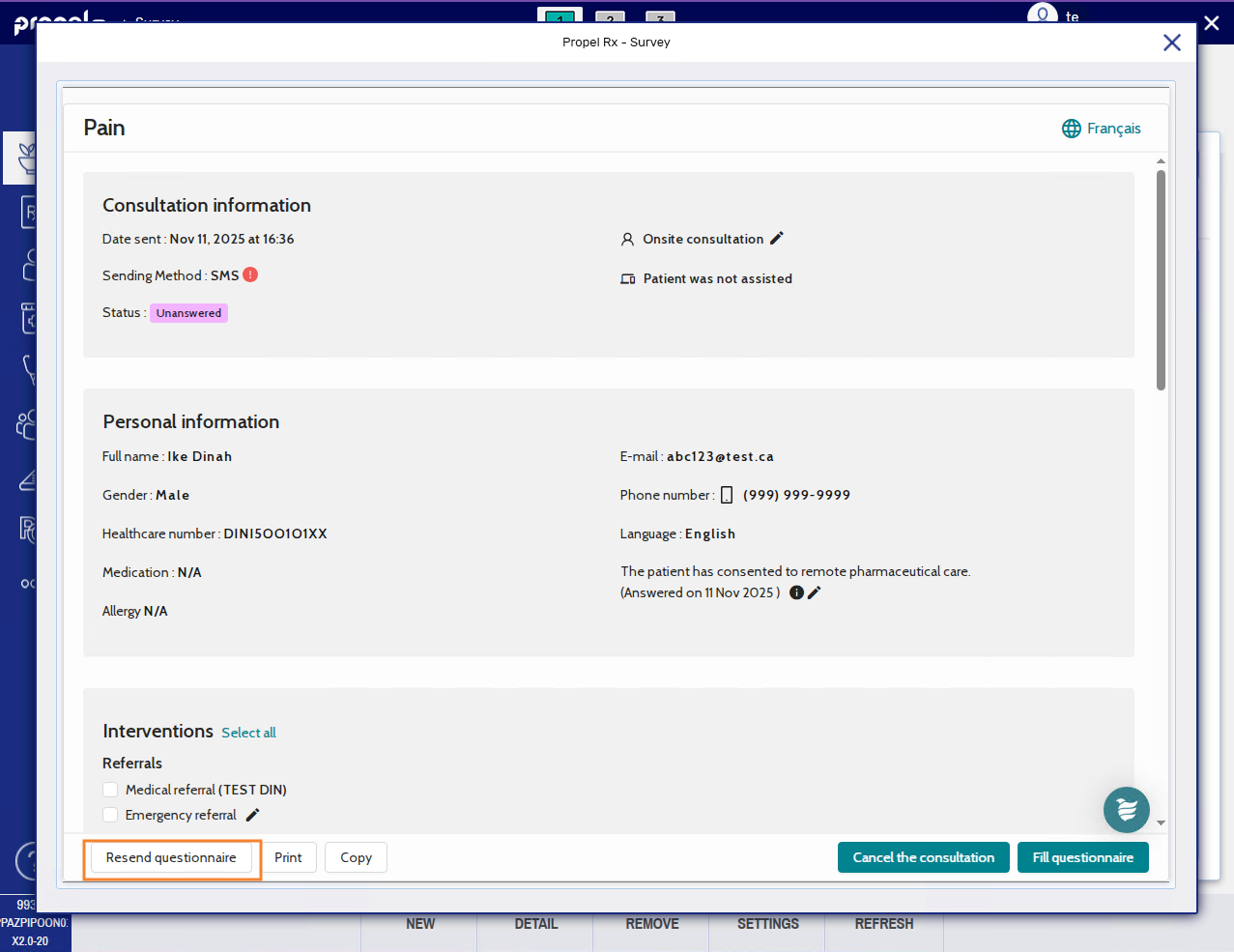
Select Resend questionnaire.
-
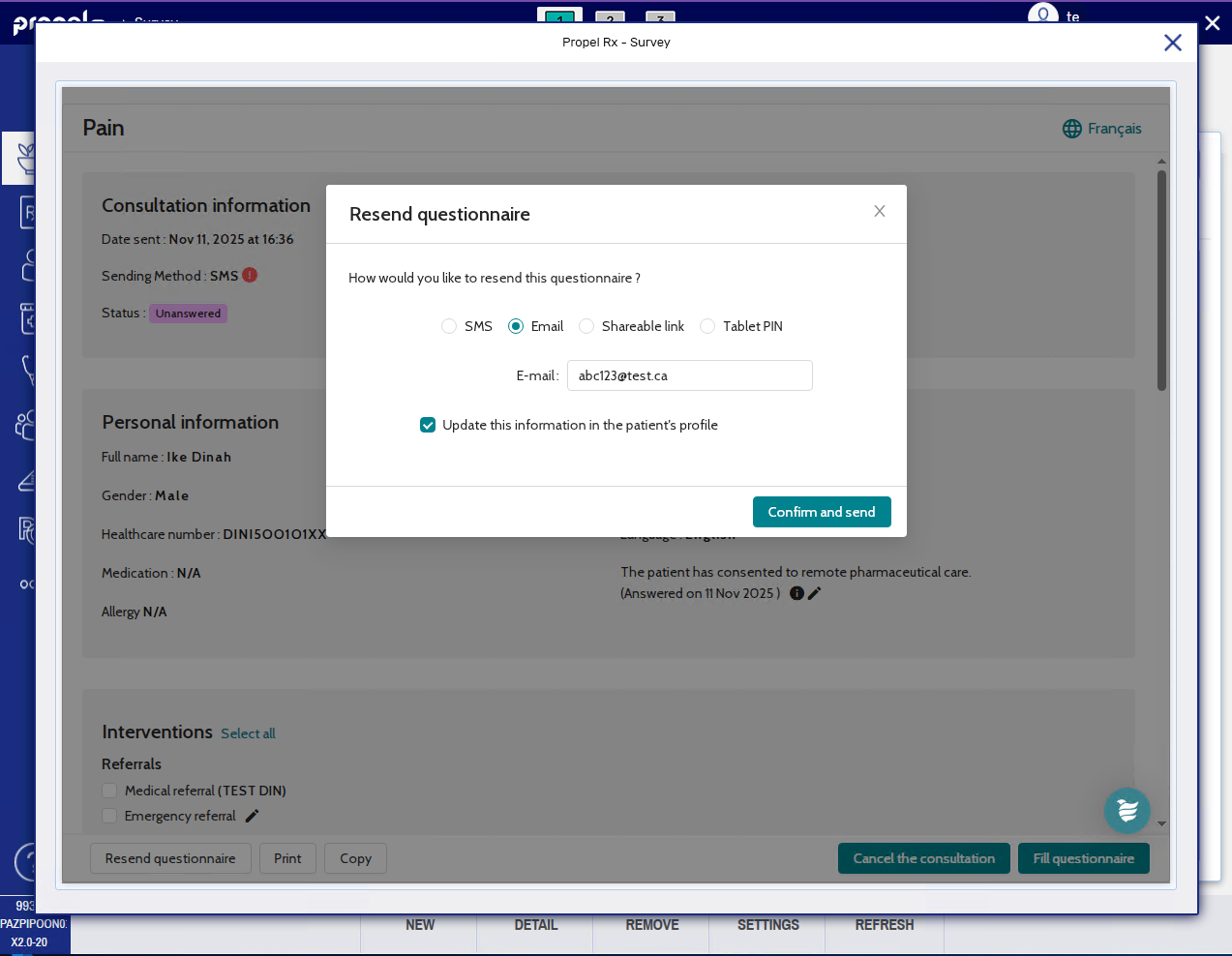
Select how the survey will be resent. You can send a survey to the patient's mobile phone number or email. Alternatively, you can copy a link which you provide to the patient or enter a 4-digit PIN on your pharmacy's iPad for the patient to complete their survey. For more information about the tablet PIN link, see Shareable links.
-
If the patient's mobile phone number or email was edited for the resend, select the checkbox to update the patient's profile if desired. Any changes made will be saved on the survey site but not write back to Propel Rx.
-
Select Confirm and send/Generate.
-
Close the Survey window once done.
From the Patient History Tab
-
Open the Patient Folder.
-
Select the History tab.
-
Select the row corresponding to the survey.
-
Select Detail to open the survey in a separate window.
-
Select Resend questionnaire.
-
Select how the survey will be resent. You can send a survey to the patient's mobile phone number or email. Alternatively, you can copy a link which you provide to the patient or enter a 4-digit PIN on your pharmacy's iPad for the patient to complete their survey. For more information about the tablet PIN link, see Shareable links.
-
If the patient's mobile phone number or email was edited for the resend, select the checkbox to update the patient's profile if desired. Any changes made will be saved on the survey site but not write back to Propel Rx.
-
Select Confirm and send/Generate.
-
Close the Survey window once done.